Flip a Coin App 5.0 is available for iPhone and iPad, with new coins, refreshed visuals, and additional improvements. And for the first time ever, Flip a Coin App is also available for Android, bringing the same simple tap-to-flip experience to a new audience.
New Features
A new U.S. Historical Coin Pack in-app purchase is available. Unlock 11 classic U.S. coin designs, including the Liberty Head Nickel, Buffalo Nickel, Mercury Dime, Barber coins, Standing Liberty Quarter, Walking Liberty Half Dollar, Morgan Silver Dollar, Peace Dollar, and Trade Dollar.
A dark mode icon is available (iOS).
On iPadOS you can change the coin type in each window independently.
File Cabinet Pro version 8.8.3 for macOS is here, featuring a redesigned Preview pane that makes it easier to inspect files and view important metadata without leaving the app.
With this update, you can now view detailed file metadata directly in File Cabinet Pro’s Preview pane. This can include information such as image dimensions, color space, alpha channel, and more. Whether you are organizing images, reviewing documents, or managing a large collection of files, the new Preview pane gives you more useful information at a glance.
The redesigned Preview pane is also customizable. You can choose which metadata fields are displayed for specific file types, making it easier to focus on the details that matter most to your workflow. To customize the Preview pane, right-click on the background area in the Preview pane and choose ‘Show Preview Options’ from the menu. From there, you can select the metadata you want to display. You can even drag and drop metadata entries in the ‘Preview Options’ popover to reorder them. This lets you place your most important file details exactly where you want them.
Choose the file metadata you want to view in File Cabinet Pro from the ‘Preview Options’ popover.
Preview Pane Available from All View Types
Another improvement in this release is that the Preview pane is no longer limited to Column view. The old Preview pane could only be viewed while using Column view. In File Cabinet Pro 8.8.3, the new Preview pane is available from all view types giving you more flexibility no matter how you prefer to browse your files
How to Hide and Show the Preview Pane
To show or hide the Preview pane, you can use the Command + Shift + P keyboard shortcut. You can also add the Preview toolbar item to File Cabinet Pro’s toolbar for quick access.
Also Included in File Cabinet Pro Version 8.8.3:
Performance improvements and minor bug fixes.
Get File Cabinet Pro Version 8.8.3 Now
File Cabinet Pro version 8.8.3 is a free update for users who have already purchased a license. New users can purchase File Cabinet Pro here.
We’re happy to announce the release of File Cabinet Pro 8.8.2, bringing a mix of usability improvements, performance enhancements, and bug fixes to make managing your files even smoother.
Custom Folder Colors
One of the most noticeable changes in this release is the ability to set a custom folder color directly in File Cabinet Pro Settings. To avoid bugs in the Quick Look framework on macOS Tahoe, File Cabinet Pro now handles folder tinting independently. This gives you more reliable customization and a more consistent visual experience.
Improved Performance on External Volumes
Version 8.8.2 also includes major performance improvements when viewing folders on external volumes. If you work with files on external drives, this update should make browsing those folders feel much faster and more responsive.
Better Error Handling
We have also improved the way File Cabinet Pro handles certain file operation errors. When multiple files fail to move or copy for the same reason—such as when a file already exists—you will now see one clear alert instead of several separate messages. That alert will list the names of all affected files, making it much easier to understand what happened and decide what to do next.
File Cabinet Pro now displays one clear alert when multiple files fail to move or copy for the same reason.
Organizational Improvements in Settings
In addition, we have made a small but useful organizational improvement in Settings. Column view width settings now have their own dedicated tab, making them easier to find and adjust.
A new “Columns” section has been added to File Cabinet Pro Settings in version 8.8.2.
File Cabinet Pro version 8.8 brings a cleaner look, better browsing controls, and usability enhancements that make the app more customizable.
Here’s What’s New:
A Modern Look for the Favorites Sidebar
The Favorites sidebar has been moved into the main window and placed on Liquid Glass by default (Liquid Glass requires macOS 26.0 or later).
The Favorites sidebar now displays larger and better looking icon images (requires macOS 11.0 or later).
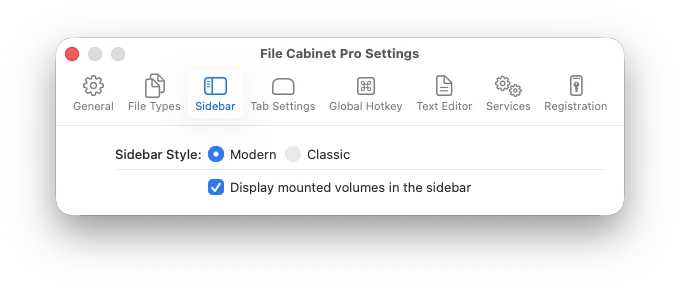
Fans of the retro style sidebar can set the new “Sidebar Style” preference to “Classic” in app settings.
File Cabinet Pro’s Favorites sidebar using the new Modern sidebar style on Liquid Glass (File Cabinet Pro 8.8 on macOS Tahoe 26.2).A new “Sidebar Style” preference has been added to File Cabinet Pro Settings.File Cabinet Pro using the Classic sidebar style (File Cabinet Pro 8.8 on macOS Tahoe 26.2).
Automatic Column View Resizing
File Cabinet Pro can now automatically resize columns in Column view to fit filenames. To enable this feature turn on the “Resize columns to fit filenames” checkbox in app settings.
Invoke “Verify Checksum” from the Toolbar
You can now add a ‘Verify Checksum’ button to File Cabinet Pro’s toolbar. While the “Verify Checksum” feature has been included in File Cabinet Pro for many years, you previously had to invoke this action from the Services submenu.
Faster Icon View Zoom Controls
You can now enlarge the size of images in Icon view using the Command+ keyboard shortcut.
You can now shrink the size of images in Icon view using the Command- keyboard shortcut.
Bug Fixes
Fixed rare crash related to Icon view reloading when restoring directory state.
Workaround fix for a bug in macOS that could cause a crash when viewing files in iCloud.
File Cabinet Pro version 8.7.3 has been released for macOS. This update improves how the Favorites list in the sidebar works with folders on disk images and external volumes.
Improvements:
When a folder in the Favorites list is on a volume that needs to be mounted, File Cabinet Pro now displays a warning icon () to indicate that the folder is unreachable.
The NAS_Docs folder in the sidebar is on a volume not currently mounted (File Cabinet Pro 8.7.3 on macOS Tahoe).
What Happens When you Click on a Folder Displaying the Warning Icon () ?
If the volume is local (for example, a folder inside a disk image stored locally on your Mac), File Cabinet Pro will mount the volume automatically.
If the volume is external, an alert will be presented with options to:
Mount the volume (if possible for network volumes where a remount URL can be determined).
Remove the entry from Favorites.
Relink the folder (choose a new folder location manually).
Cancel to keep the Favorites list as is.
Why This Matters
If you rely on Favorites for folders that aren’t always connected—like NAS shares, external drives, or disk images—8.7.3 makes that workflow more reliable. When volumes aren’t mounted your sidebar stays intact, you get clear visual status of folder availability at a glance, and you decide what happens next.
File Cabinet Pro version 8.7.2 has been released for macOS. This release focuses on making file organization more flexible, reliable, and efficient. You’ll find new options for sorting grouped files, improvements to the settings interface, faster file loading, and important bug fixes for macOS 26.0. The complete list of changes are provided below.
New Features:
You can now group files by name. When using “Group By Name” files are grouped by the first character of the filename.
Added a “Sort Groups by” submenu when the “Use Groups” sorting option is turned on. This submenu can be used to apply an additional sort policy to grouped files.
The new “Sort Groups By” submenu lets you apply an additional sorting rule within grouped sections, offering finer control over how your files are organized.Files can now be grouped by the first letter of the filename, making large collections easier to browse at a glance in File Cabinet Pro.
Fixes:
Workaround fix for a newly discovered bug in macOS 26.0 that could cause File Cabinet Pro’s window to suddenly disappear when interacting with the batch file renaming sheet.
Fixed a bug that could cause files to be sorted in an unexpected order after creating a new directory in Column View and then adding files to that newly created directory.
Improvements:
Faster file loading when opening a directory for the first time.
Today we’re releasing PDF Image Xtractor (version 2), a faster, cleaner way to extract images from PDF files on macOS—no subscriptions, no watermarks, just a simple one-time license.
Why PDF Image Xtractor?
Extract images from PDFs with drag-and-drop simplicity.
Batch mode: drop in multiple PDFs and export everything in one pass.
Vector to raster: even vector artwork inside PDFs can be rasterized and exported as standard images.
Targeted export: extract images on a custom page range when you only want to extract from part of a PDF document.
Choose your format: save as PNG, JPEG, TIFF, or BMP.
Version 2 of PDF Image Xtractor is more capable than ever, bringing streamlined batch image extraction and vector-shape exporting so you can grab clean images from your PDF files in seconds.
How to Extract Images from PDF on Mac (Step-by-Step)
Open PDF Image Xtractor.
Drag one or more PDFs onto the window. 
(Optional) Set a page range and output format. 
Click Export—your images are saved to a folder, ready to use.
Built for modern Macs
PDF Image Xtractor supports macOS 12.0 or later.
PDF Image Xtractor runs natively on Apple Silicon and Intel Macs.
One-time purchase, no subscription
PDF Image Xtractor is available on the App Tyrant Store as a traditional license (a single license may be registered on up to two Macs at a time).
Perfect for:
Designers collecting placed images from client proofs
Marketers lifting logos and graphics from brand PDFs
Researchers saving figures for slides and papers
Anyone who needs images out of PDFs and doesn’t want to waste time
You can now invoke the “View Extended Attributes” action from the toolbar. To do this simply add the ‘xattr’ button to your toolbar in the customization palette.
The icon image used in the “Show in Finder” toolbar button is now slightly larger (macOS 26.0 and later).
Workaround fix for a crash caused by a bug in Apple’s ImageKit framework, which File Cabinet Pro uses.
Fixed annoying jitter when resizing the window on macOS 26.0.
File Cabinet Pro replacement for viewing xattr in Terminal — view extended file attributes in the GUI.


 to File Cabinet Pro’s toolbar for quick access.



 ) to indicate that the folder is unreachable.


