More Powerful Sorting, Smoother Workflow: Here’s What’s New in File Cabinet Pro 8.7.2

File Cabinet Pro Mac app icon.

File Cabinet Pro version 8.7.2 has been released for macOS. This release focuses on making file organization more flexible, reliable, and efficient. You’ll find new options for sorting grouped files, improvements to the settings interface, faster file loading, and important bug fixes for macOS 26.0. The complete list of changes are provided below.

New Features:

  • You can now group files by name. When using “Group By Name” files are grouped by the first character of the filename.
  • Added a “Sort Groups by” submenu when the “Use Groups” sorting option is turned on. This submenu can be used to apply an additional sort policy to grouped files.
A File Cabinet Pro window showing image files grouped alphabetically under headings A–D. A context menu is open, displaying the new “Sort Groups By” submenu with sorting options such as Name, Kind, Dates, Size, and Tags.
The new “Sort Groups By” submenu lets you apply an additional sorting rule within grouped sections, offering finer control over how your files are organized.
File Cabinet Pro displaying image files grouped alphabetically by the first letter of the filename, with a waterfall image selected and previewed in Column view.
Files can now be grouped by the first letter of the filename, making large collections easier to browse at a glance in File Cabinet Pro.

Fixes:

  • Workaround fix for a newly discovered bug in macOS 26.0 that could cause File Cabinet Pro’s window to suddenly disappear when interacting with the batch file renaming sheet.
  • Fixed a bug that could cause files to be sorted in an unexpected order after creating a new directory in Column View and then adding files to that newly created directory.

Improvements:

  • Faster file loading when opening a directory for the first time.
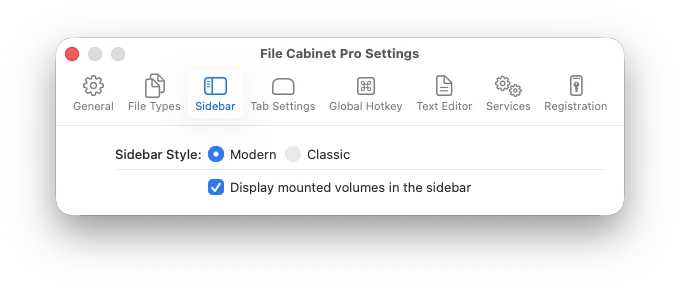
  • Made visual improvements to the settings window.

File Cabinet Pro 8.7.1 Update Adds Visual Folder States, Toolbar Toggle Shortcut, and More

File Cabinet Pro Mac app icon.
        Download on the App Tyrant Store button.

File Cabinet Pro version 8.7.1 has been released for macOS.

What’s New?

  • Folder icons visually indicate if the folder is empty (requires macOS 26.0 and later).
  • File Cabinet Pro’s toolbar can be hidden using the Option+Command+T keyboard shortcut.
  • Quick Look Previews for .icon files created with Icon Composer are displayed instead of the generic icon for the file type.
  • Resolved a rare issue where icons might fail to load properly in Column View.
  • Fixed layout bug in Icon View when using collapsed sections.
  • Minor bug fixes and improvements.
File Cabinet Pro macOS Tahoe screenshot displaying empty folder next to two non-empty folders.
Folder icons displayed in File Cabinet Pro now visually indicate if the folder is empty.

File Cabinet Pro Version 8.7 Adds Collapsible Icon View Sections, Performance Improvements, and More

File Cabinet Pro Mac app icon.
        Download on the App Tyrant Store button.

File Cabinet Pro version 8.7 has been released for macOS.

What’s New?

  • You can now collapse and expand sections in Icon View.
  • Column View and List View show Quick Look thumbnails for image file types.
  • The position of the Split View that divides Cover Flow and List View is now restored when navigating back to a directory.
  • The Split View that divides Cover Flow and List View resizes proportionally when you resize the window instead of always snapping to a 50-50 split.
  • More efficient loading of thumbnails and file metadata.
  • The “Show in Finder” toolbar button now opens the current directory in Finder when there is no selection.
  • A bunch of minor bug fixes and UI tweaks for macOS Tahoe 26.1.
File Cabinet Pro Mac app screenshot displaying Icon View with a collapsed section running on macOS Tahoe.
File Cabinet Pro now supports section collapse in Icon View.
File Cabinet Pro Column View displaying Quicklook thumbnails of image file types on macOS Tahoe.
Quicklook thumbnails for image file types are now displayed in Column View and List View.

Previously

View Extended File Attributes with One Click on macOS with File Cabinet Pro 8.6.4 — Plus macOS Tahoe Improvements

File Cabinet Pro Mac app icon.
        Download on the App Tyrant Store button.

File Cabinet Pro version 8.6.4 has been released for macOS.

What’s New?

  • You can now invoke the “View Extended Attributes” action from the toolbar. To do this simply add the ‘xattr’ button to your toolbar in the customization palette.
  • The icon image used in the “Show in Finder” toolbar button is now slightly larger (macOS 26.0 and later).
  • Workaround fix for a crash caused by a bug in Apple’s ImageKit framework, which File Cabinet Pro uses.
  • Fixed annoying jitter when resizing the window on macOS 26.0.
File Cabinet Pro xattr toolbar button displaying a tooltip
File Cabinet Pro replacement for viewing xattr in Terminal — view extended file attributes in the GUI.

File Cabinet Pro 8.6.2 Update: ‘Show in Finder’ Toolbar Button + Minor Improvements and Bug Fixes

File Cabinet Pro Mac app icon.
        Download on the App Tyrant Store button.

File Cabinet Pro version 8.6.2 has been released for macOS.

What’s New?

  • In icon view if there is no selection you can select the first file by pressing the down arrow key.
  • You can now add a “Show in Finder” button to the toolbar.
  • Fixed issue that caused File Cabinet Pro’s window to remain behind the active app window when clicking the menu bar icon.
  • Fixed bug in the Settings window on macOS Tahoe when the system is in Dark mode.

File Cabinet Pro 8.6 Update: macOS Tahoe Support, Refreshed Icon, and Major Fixes

File Cabinet Pro app for macOS Tahoe promo image.

            Download on the App Tyrant Store button.

File Cabinet Pro version 8.6 has been released for macOS.

What’s New?

  • File Cabinet Pro has a new app icon and is compatible with macOS Tahoe.
  • You can now invoke “Deselect All” using the Option+Command+A keyboard shortcut.
  • File Cabinet Pro’s popover window now has rounded corners.
  • Resizing the popover window is more flexible. You can enlarge the popover window even when the menu bar icon is close to the right edge of the screen.
  • Fixed an issue that caused icon view to sometimes show low quality images after enlarging the zoom value.
  • Fixed an issue that sometimes caused File Cabinet Pro’s window to inappropriately get moved to the front when toggling the visibility of the Dock and/or when switching between Spaces.
  • Fixed an issue that caused icons in icon view to show placeholder images for far too long under certain conditions.
  • The “Sidebar” toolbar item is now included in the default set of items in the toolbar customization palette.
  • Fixed an issue that caused the “Go to Folder” window to sometimes get clipped off the right edge of the screen.
  • Changed the image used in the “Arrange by” toolbar item on macOS 11.0 and later.
File Cabinet Pro macOS Tahoe screenshot of column view, expanded layout.

Alias Icon Rendering Fixed in File Cabinet Pro Version 8.5.7 [App Update]

File Cabinet Pro macOS app icon
            Download on the App Tyrant Store button.

File Cabinet Pro version 8.5.7 has been released for macOS.

What’s New?

Improved Alias Icon Handling in File Cabinet Pro

Fixed an issue that caused the Terminal icon to be inappropriately displayed in alias file icons. Since macOS Ventura the built in Quick Look framework provided by the operating system started creating flawed icons for alias files.

Instead of relying completely on Quick Look, File Cabinet Pro now composites icons for alias files to workaround this issue. File Cabinet Pro still uses the Quick Look framework to generate the icon for the original file type and then layers the alias arrow badge over it. Prior to Ventura, Quick Look handled all of this and no additional work was required by developers.

Conditions for Proper Alias Icon Display

File Cabinet Pro needs to know the type of file an alias points to in order to composite the icon. Because of this, alias icons will only display properly if at least one of the following conditions is true:

1) The file type of the original file the alias points to can be inferred by the filename extension (e.g. Filename.png alias).
2) File Cabinet Pro has permission to resolve the alias and query the original file to determine its type.

If either of the above conditions aren’t met the icon may still display incorrectly. Usually File Cabinet Pro has permission to the original file but if you are using the sandboxed version of the app (the Mac App Store version) there may be times where File Cabinet Pro can’t resolve the alias. But you can fix this problem by doing one of the following in the Mac App Store version:

  • Make the name of the alias file end in: .fileExtension alias (replace .fileExtension with the actual file extension of the original file).
  • Add the parent directory (or any ancestor directory) of the original file to your Favorites sidebar.
  • Follow this tutorial and grant File Cabinet Pro permission to an entire directory tree in File Cabinet Pro Settings.
  • Grant File Cabinet Pro full disk access in System Settings.

Developer Feedback to Apple

I filed two bug reports with Apple about this. The first bug report I filed back in 2023 against NSWorkspace -iconForFile: (which presumably uses the Quick Look framework internally). I also filed a bug report against the Quick Look framework back in March. Apple did not respond to either bug report.

The image below is an example of the preview Quick Look provides for alias files to third-party apps (starting in Ventura):

Screenshot of Terminal's icon appearing in the icon image of a file alias.

And here is a screenshot of the icon File Cabinet Pro now generates for file aliases in version 8.5.7:

File Cabinet Pro Mac app screenshot with file alias selected.

File Cabinet Pro Version 8.5.6 Update Released

File Cabinet Pro macOS Big Sur app icon
            Download on the App Tyrant Store button.

File Cabinet Pro version 8.5.6 has been released for macOS.

File Cabinet Pro running on macOS Sequioa promo image.

What’s New?

-Brought back the ‘Launch at Login’ feature in File Cabinet Pro settings if you are running macOS 13.0 or later. Due to changes in prior versions of macOS we had to remove this feature but now it is back. If you are on a version of macOS prior to 13.0 you can still have File Cabinet Pro launch at login but you must configure it in System Settings.

-Minor bug fixes.

File Cabinet Pro Version 8.5.2 Update Released for macOS

File Cabinet Pro macOS Big Sur app icon
            Download on the App Tyrant Store button.

File Cabinet Pro version 8.5.2 has been released for macOS.

macOS Ventura Screenshot of File Cabinet Pro  app running.

What’s New?

-The Preferences window has been renamed to Settings.

-Performance improvements.

Previously: